HyperFrames Explained: HeyGen’s Open-Source AI Video Editor That Turns HTML Into MP4
HyperFrames is an open-source AI video editor from HeyGen that turns HTML, CSS and JavaScript into deterministic MP4 videos. You can describe a video in plain words, drop in your own footage, or write code directly, and the result is a seekable, frame-accurate video you can preview and re-render.
Key facts
- Project: HyperFrames — “Open-source AI video editor: edit your own footage, or create and remake any video with Claude Code, Codex or the free Studio app. Write HTML, render MP4. By HeyGen.”
- Stars: 89,195 stars and 8,315 forks on GitHub, with 7,944 commits behind the project.
- Licence: Apache-2.0, so the framework is free and open source.
- Created: 2026-03-10, with 670 releases and 699 tags, and
mainas the default branch. - Core idea: Write HTML, CSS and JavaScript with seekable animations, then render deterministic MP4 videos. No React is required.
- Three ways in: the free Studio app, your coding agent, or a chat assistant such as Claude, ChatGPT or Grok through a connector (beta).
- Skills: 9 skills in total. The
/hyperframesskill carries the render contract and the production loop, with on-demand skills such as/slideshow,/remotion-to-hyperframes,/figma,/style-samplingand/reverse-any-video. - Requirements: Node.js 22 or newer and FFmpeg. Cloud rendering and AWS Lambda are supported.
What is HyperFrames and how does it work?
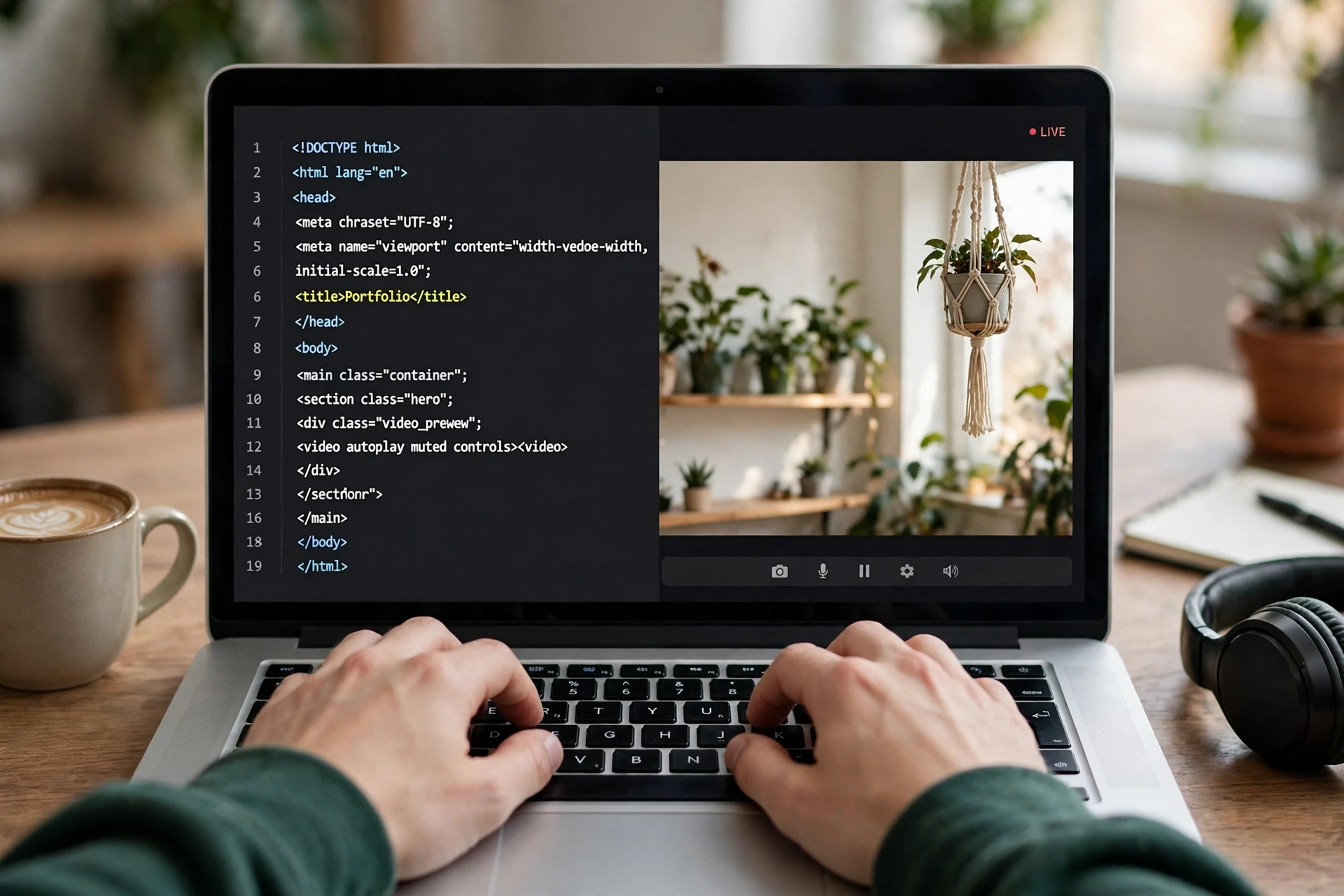
HyperFrames treats a video as a web page with a timeline. You write ordinary HTML, CSS and JavaScript, add animations that can be scrubbed back and forth, and render the result to an MP4 file. Because the video is code, every frame is deterministic: render the same project twice and you get the same video twice.
The idea will feel familiar if you follow the tools covered on the KongoTech homepage. Developers already build interfaces in HTML and CSS, so HyperFrames lets them reuse those skills for video: a heading becomes a title card, a chart becomes a data visualisation, and a CSS animation becomes a transition.
Seekable animations are the key detail. An animation is a function of time, so you can jump to any second and see exactly what that frame should look like. Debugging a video feels like debugging a web page: pause at the broken frame, find the element, and fix the style.
How do you make a video with HyperFrames Studio?
The Studio app is the simplest way in, and it is free to start. You describe the video you want in plain words, or you drop in your own footage, and then you edit by typing or pointing. There is no timeline to learn first and no code to write unless you want to. The app is aimed at creators who want a finished video quickly, not at developers who want to script every frame.
The free plan covers the basics, while Pro costs $25 per month and adds the top video, image, voice and music models, along with 25,000 credits per month. Start free for simple edits and short clips, and move to Pro when you are producing regularly.
Studio is also a good way to learn the tool before you touch the command line: make a short clip, see how the app structures it, and you will understand what the HTML version looks like.
How does the coding-agent workflow work?
The second way to use HyperFrames is through your coding agent, and this is where the project is most powerful. It works with Claude Code, Codex, Cursor and Gemini CLI. You install the skills with a single command:
npx skills add heygen-com/hyperframes
That gives your agent nine skills to work with. The main one, /hyperframes, carries the render contract and the production loop: plan the video, write valid HTML, wire up the animations, add media, lint the result, preview it, and render it. The loop is deliberate. Planning first keeps the video coherent, linting catches broken markup before a render wastes time, and previewing lets you check the timing before you commit to a full export.
The on-demand skills cover recurring jobs: /slideshow builds slide-based videos, /figma brings designs in from Figma, /style-sampling copies the look of a reference, and /reverse-any-video studies an existing video so you can remake it. There is also a Claude Code plugin, installed with these two commands:
claude plugin marketplace add heygen-com/hyperframes
claude plugin install hyperframes@hyperframes
This agent-first design mirrors other tools on this site: AG-UI lets an agent and an interface talk through a shared protocol, and Stitch Skills for Google Stitch teaches an agent to use a design tool. In HyperFrames, the skill is the instruction manual, and the agent follows it step by step.
What can you make with HyperFrames?
The list of formats HyperFrames supports is broad, and it is worth reading in full before you pick your first project. You can make branded UGC videos for TikTok and Instagram, video podcast episodes, product demos and launch videos, explainer videos and faceless YouTube episodes, remakes of videos you love, social videos with kinetic captions, data visualisations and chart races, motion graphics with code instead of After Effects, and decks with presenter mode.
That range tells you who the tool is for. A marketer can ship a week of short clips from one script, a founder can update on-screen text without re-recording a voiceover, and a teacher can turn a spreadsheet into a chart race that moves as the numbers change.
Kinetic captions deserve a special mention: words appear on screen in time with the voice, which keeps a viewer watching even with the sound off. In HyperFrames, captions are text in the HTML, timed by the same animation system as everything else, so changing a word is a one-line edit.

How do you install and render a HyperFrames project?
If you prefer the command line, the workflow has three steps. First, create a project. Second, preview it in the browser. Third, render it to MP4. The commands are short and easy to remember:
npx hyperframes init my-video
npx hyperframes preview
npx hyperframes render
Before you start, check that you have Node.js 22 or newer and FFmpeg installed — a missing FFmpeg install is the most common reason a first render fails. Once the project is created, open the files in any editor, change the text, colours or timing, and preview again to see the change.
For larger jobs, HyperFrames also supports cloud rendering and AWS Lambda, so a team can render many videos at once on a server instead of a laptop, with a script or spreadsheet triggering each render.
Is HyperFrames a good Remotion alternative?
HyperFrames is positioned as a Remotion alternative, and the comparison is fair. Remotion is the established way to make videos with React, and many developers already know it. HyperFrames takes the same core idea — video as code, rendered deterministically — and removes the React requirement. If you are comfortable with plain HTML, CSS and JavaScript, you can start faster, and you can use the same files in a browser without a build step for the video logic.
Switching is practical too: the /remotion-to-hyperframes skill ports an existing Remotion project over, so you can port one small project, render it in both tools, and compare the output and build time.
The choice is about fit, not which tool is better in general. A React team with Remotion components may stay put, while a team working in plain HTML, or a solo creator with an AI coding agent, may find HyperFrames simpler. Either way, the free Apache-2.0 licence makes trying it low-risk.
What Is Univer looks at a similar open SDK for documents and spreadsheets: a familiar format, a code-first workflow, and a licence that lets you build on top of it.
How much does HyperFrames cost?
The framework itself is free and open source under the Apache-2.0 licence, so there is no charge for the code, the CLI or the render pipeline. You can install it, build videos and render MP4 files without paying HeyGen anything. The cost only appears when you use the Studio app’s paid tier or the hosted models behind it.
Studio’s Pro plan is $25 per month, adding the top video, image, voice and music models and 25,000 credits per month. A creator making a few short videos a week may stay free for a long time, while a team producing daily content will use the credits quickly.
There is also the cost of your time: a free tool that takes hours to learn is not free in practice. Start with one short video, time how long it takes from idea to finished MP4, and then decide whether the workflow is worth adopting.
What should you watch out for before you start?
HyperFrames is young and fast-moving: created on 2026-03-10, it already has 670 releases and 699 tags. That pace is a good sign, but pin a version for any project you need to reproduce later, rather than always tracking the latest release.
The chat route is still in beta: using Claude, ChatGPT or Grok through a connector may have rough edges. Use the Studio app or the coding-agent route for work with a deadline, and treat beta results as experiments.
Finally, the output depends on the input: a vague description produces a vague video. Write the script first, decide the format, gather your footage and images, and only then ask the app or agent to build the video — plan, write, wire, add media, lint, preview and render, in that order.

Frequently asked questions
What is HyperFrames?
HyperFrames is an open-source AI video editor from HeyGen that turns HTML, CSS and JavaScript into deterministic MP4 videos. You can use the free Studio app, your coding agent, or a chat assistant through a connector, and you can edit your own footage or create a video from scratch.
Is HyperFrames really free?
Yes, the HyperFrames framework is free and open source under the Apache-2.0 licence. The Studio app has a free plan, and the Pro plan costs $25 per month, adding top video, image, voice and music models and 25,000 credits per month.
What do I need to install HyperFrames?
You need Node.js 22 or newer and FFmpeg. Create a project with npx hyperframes init my-video, preview it with npx hyperframes preview, and render it with npx hyperframes render. Cloud rendering and AWS Lambda are also supported.
Can HyperFrames replace Remotion?
It can for many projects, because it offers the same video-as-code idea without requiring React. A Remotion project can be ported with the /remotion-to-hyperframes skill, so you can try one project in HyperFrames and compare the output before switching fully.
What kinds of videos can I make with HyperFrames?
You can make branded UGC videos for TikTok and Instagram, video podcast episodes, product demos and launch videos, explainer and faceless YouTube episodes, remakes of videos you love, social videos with kinetic captions, data visualisations and chart races, motion graphics with code, and decks with presenter mode.