Agent Browser Explained: The Rust CLI That Gives Your AI Agent a Browser
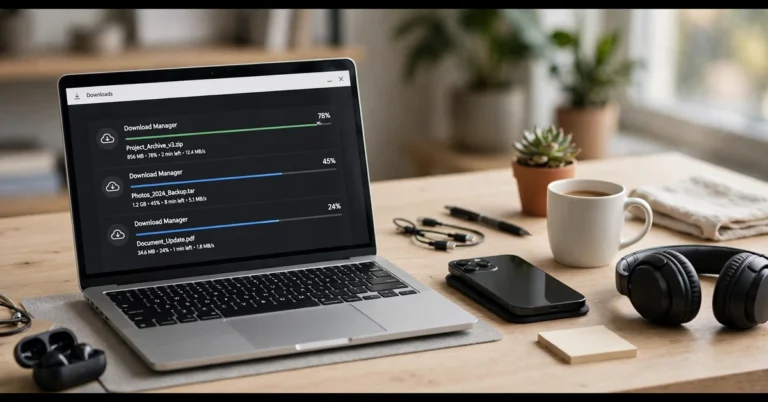
Agent Browser is a free, open-source Rust command-line tool from Vercel Labs that gives an AI agent its own browser. It opens pages, reads them as compact accessibility-tree snapshots with refs such as @e1, and clicks, fills and scrolls by ref, checking each step. It has 53,501 GitHub stars, an Apache-2.0 licence, and was created on 11 January 2026.
Key facts
- Project: Agent Browser — browser automation CLI for AI agents, from Vercel Labs
- GitHub stars: 53,501, with 3,747 forks and 871 commits (checked 23 November 2026)
- Licence: Apache-2.0
- Created: 11 January 2026
- Releases: 122, with 122 tags; default branch main
- Install:
npm install -g agent-browser, thenagent-browser install - Docs:
agent-browser.dev - Platforms: native binaries for macOS (ARM64, x64), Linux (ARM64, x64, glibc and musl), Windows (x64)
What Is Agent Browser and How Does It Work?
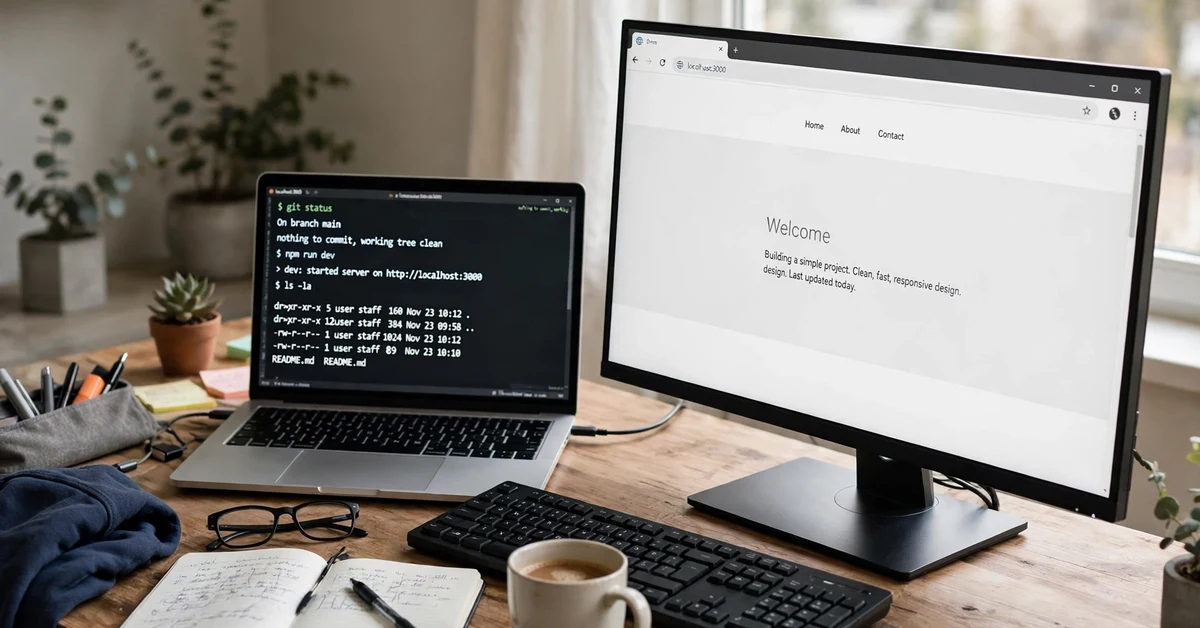
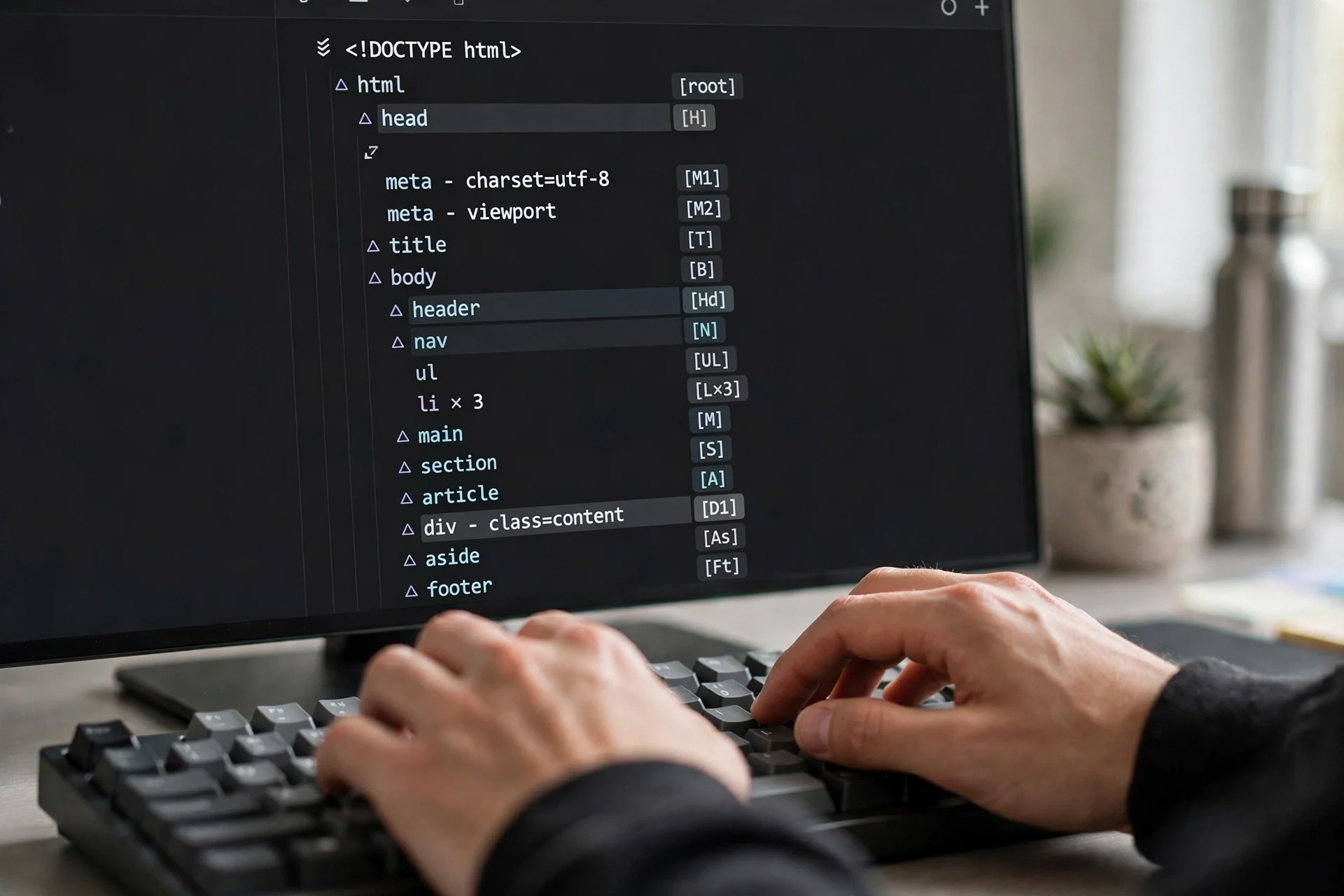
Agent Browser is a command-line interface that lets an AI agent drive a real web browser, one short shell call at a time. Instead of handing the agent a screenshot and hoping it can guess where to click, it gives the agent a structured view of the page: the snapshot command returns the page as a compact accessibility tree, with a short ref such as @e1 for each element. The agent acts on a ref, reads the page again to check the result, and repeats until the task is done.
That loop is the whole idea. The agent never has to guess pixel coordinates, and it never has to trust that a click worked — it takes a fresh snapshot and sees the new state of the page. Because the browser stays open between commands, each step is a single short shell call: no browser to launch, no session to rebuild.
Under the surface, the CLI sends each command to a background daemon that controls the browser over the Chrome DevTools Protocol. Each --session gets its own daemon and its own browser, so several agents can work in parallel. By default, the daemon closes a headless browser and exits after one hour without commands, so idle sessions clean themselves up. It comes from Vercel Labs and sits in the same wave of agent-first developer tools covered on the KongoTech homepage.
How Do You Install Agent Browser and Run Your First Commands?
Installation takes two commands. First, install the CLI itself:
npm install -g agent-browserThen run the setup step, which downloads Chrome for Testing the first time only:
agent-browser installIf you use Homebrew, there is a shorter route: brew install agent-browser. And if you want to try it without installing anything at all, npx agent-browser open example.com opens a page straight away.
The quick start shows the basic loop in five commands: agent-browser open example.com opens the page, agent-browser snapshot -i takes an interactive snapshot, agent-browser click @e1 clicks an element, agent-browser get url reads back the current URL, and agent-browser close closes the browser. That five-command loop is worth learning by heart: almost every longer task is built from it.
What Can Agent Browser Do? A Tour of Its Command Groups
Agent Browser’s commands fall into clear groups, and knowing the groups is faster than memorising every command. The navigate and read group covers open, snapshot, get and is: opening pages, reading their structure and checking their state. The interact group covers click, fill, type, press, hover, scroll, drag, upload and find: everything an agent does to a page once it is open.
The wait group pauses until something happens — a page loads, an element appears, a network request finishes — instead of guessing with a fixed sleep. The capture group covers screenshot, pdf, record, download and diff: saving what the browser shows, recording a session, downloading a file, or comparing two states of a page. The network and state group covers cookies, storage, network and eval: inspecting what the browser remembers, watching its traffic, and running JavaScript in the page.
There are groups for tabs, frames and dialogs, so an agent can switch tabs, step into an iframe and answer a confirmation box. The debug group covers console, errors, trace, profiler, vitals, react and a11y: console output, errors, performance, page vitals, React components and accessibility. Sessions and authentication have their own group, agents and integrations another, and an observe group covers stream and dashboard.
Why Do Clicks Fail Instead of Pretending to Succeed?
The most honest design decision in Agent Browser is also the easiest to miss: a click fails instead of reporting success when the target is hidden, disabled, outside the viewport, or covered by another element such as a consent banner. Most automation tools click the coordinates and report that the click happened, leaving the agent to discover later — if it ever does — that nothing changed.
That distinction matters because an agent’s whole workflow depends on trusting its own actions. A failed click is information: it tells the agent that something is in the way, and the agent can scroll the element into view, dismiss the banner, or pick a different target. A snapshot after every action and a click that fails loudly give the agent a tight feedback loop — and tight feedback loops are what make an agent reliable instead of merely busy.
Which Browsers and Engines Does Agent Browser Support?
Chrome for Testing is the default engine, downloaded by the agent-browser install step. It is a clean, purpose-built Chrome, so the agent starts from a known state instead of your personal browser’s extensions, cookies and tabs.
It is not the only engine. Agent Browser also supports Lightpanda and Obscura engines, Mobile Safari in the iOS Simulator, and cloud browser providers: Browserbase, Browserless, Browser Use, Kernel and AgentCore. That range covers the three ways people actually run browser automation: locally on a developer’s machine, on a mobile simulator for testing phone layouts, and in the cloud for scale, isolation or geographic variety. Native binaries ship for macOS on ARM64 and x64, Linux on ARM64 and x64 in glibc and musl variants, and Windows on x64. Building from source is heavier: it needs Node.js 24 or newer, pnpm 11 or newer, and Rust.

How Do AI Agents Use Agent Browser With Skills and MCP?
Agent Browser is built for agents, not just for humans typing commands, and it shows in how it plugs into agent workflows. The command agent-browser skills get core loads the core skill, which teaches an agent the CLI’s commands and patterns. The discovery skill can be installed with npx skills add vercel-labs/agent-browser, so an agent can find and learn the tool on its own. And agent-browser mcp starts an MCP server over stdio, letting any MCP-compatible agent call the browser as a set of tools instead of shelling out to the CLI.
That three-layer approach — a skill to read, a discovery route to find it, and an MCP server to call — matches how agent tooling is settling in 2026: skills package a way of working, MCP packages a way of calling. The same direction is visible in AG-UI, which connects agents and user interfaces.
Who Should Use Agent Browser — and What Are Its Limits?
Agent Browser fits anyone who wants an AI agent to do real work on the web: testing a site end to end, filling in forms, checking a dashboard, or verifying that a deployed change actually works in a browser. Testers get repeatable browser runs driven by plain language; developers get an agent that can click through their own product and report what it found.
There are honest limits. The project is young — created in January 2026, with 122 releases already — so it is moving fast and its commands may still change. The one-hour idle timeout is a sensible default, but a long-running task that pauses for an hour will come back to a closed browser. And the agent is only as good as the snapshot: a page that hides its meaning behind canvas rendering or heavy custom widgets gives the accessibility tree little to work with. For work that is mostly documents rather than web pages, What Is Univer shows where the same agent-first pattern is heading for office files.
Frequently Asked Questions
What is Agent Browser?
Agent Browser is a free, open-source Rust command-line tool from Vercel Labs that gives an AI agent its own browser. It opens pages, reads them as compact accessibility-tree snapshots with refs such as @e1, and clicks, fills and scrolls by ref. It has 53,501 GitHub stars and an Apache-2.0 licence.
How do I install Agent Browser?
Run npm install -g agent-browser, then agent-browser install, which downloads Chrome for Testing the first time only. Homebrew users can run brew install agent-browser instead. To try it without installing anything, run npx agent-browser open example.com. Building from source needs Node.js 24 or newer, pnpm 11 or newer, and Rust.
How does Agent Browser work?
The CLI sends each command to a background daemon that controls the browser over the Chrome DevTools Protocol. Each --session gets its own daemon and browser, and the browser stays open between commands. By default, the daemon closes a headless browser and exits after one hour without commands.
Why does Agent Browser fail a click instead of reporting success?
A click fails when the target is hidden, disabled, outside the viewport, or covered by another element such as a consent banner. Reporting the failure gives the agent real information: it can scroll the element into view, dismiss the banner, or pick another target, instead of silently doing nothing.
Is Agent Browser free, and which browsers does it support?
Yes, it is free and open source under the Apache-2.0 licence. Chrome for Testing is the default engine; it also supports Lightpanda and Obscura engines, Mobile Safari in the iOS Simulator, and cloud providers Browserbase, Browserless, Browser Use, Kernel and AgentCore. Native binaries ship for macOS, Linux and Windows.
Conclusion
Agent Browser is a small tool with a clear idea: an AI agent should drive a browser the way a person reads a page — by structure, not by pixels. With 53,501 stars in ten months, a snapshot-and-ref loop, honest click failures, and skills and MCP support, it gives agents a browser they can actually use, one short shell call at a time. Install it, run the five-command quick start, and watch an agent open a page, read it and click something, checking its own work. Stitch Skills for Google Stitch makes the same point in another field: package a proven way of working once, and reuse it every time.